Sending Supabase Auth Emails via Proton for Business SMTP
Learn how to configure Proton for Business as your custom SMTP provider for Supabase auth emails, keeping your email delivery private and reliable.
Why Custom SMTP for Supabase?
By default, Supabase uses its own shared email infrastructure to send authentication emails such as confirmations, password resets, and magic links. Importantly, Supabase's built-in email sending is rate-limited to 2 emails per hour. That is enough for development and small-scale use. If you need a production-ready setup, a custom SMTP provider is not optional. A custom SMTP setup gives you control over the sender address, deliverability reputation, and email privacy.
Why Proton for Business?
Proton for Business is an excellent choice as a custom SMTP provider for privacy-conscious companies. It offers end-to-end encryption, a Swiss-based data center with strong data protection laws, and full SMTP support for business plans.
- Swiss-hosted, end-to-end encrypted email infrastructure
- High deliverability and reliable SMTP relay
- Professional sender address using your own domain
- GDPR-compliant with strong data protection standards
Prerequisites
- An active Proton for Business account with SMTP access enabled
- A custom domain configured in your Proton Business account
- A Supabase project with admin access
Step-by-Step Setup
Step 1: Generate a Proton SMTP Token
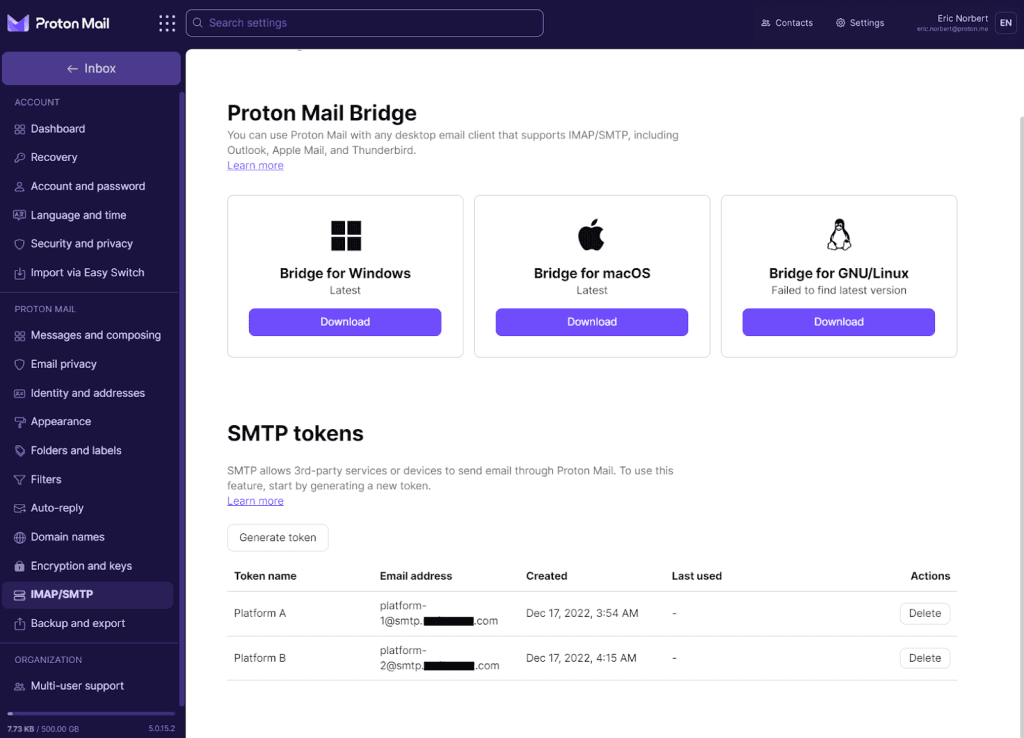
Proton does not allow using your account password directly for SMTP. You must generate a dedicated SMTP token. Here is how to do it, following the official Proton SMTP documentation
1. Open SMTP token settings in Proton Mail
Sign in to your Proton Mail account in your browser and navigate to: Settings → All settings → IMAP/SMTP → SMTP tokens
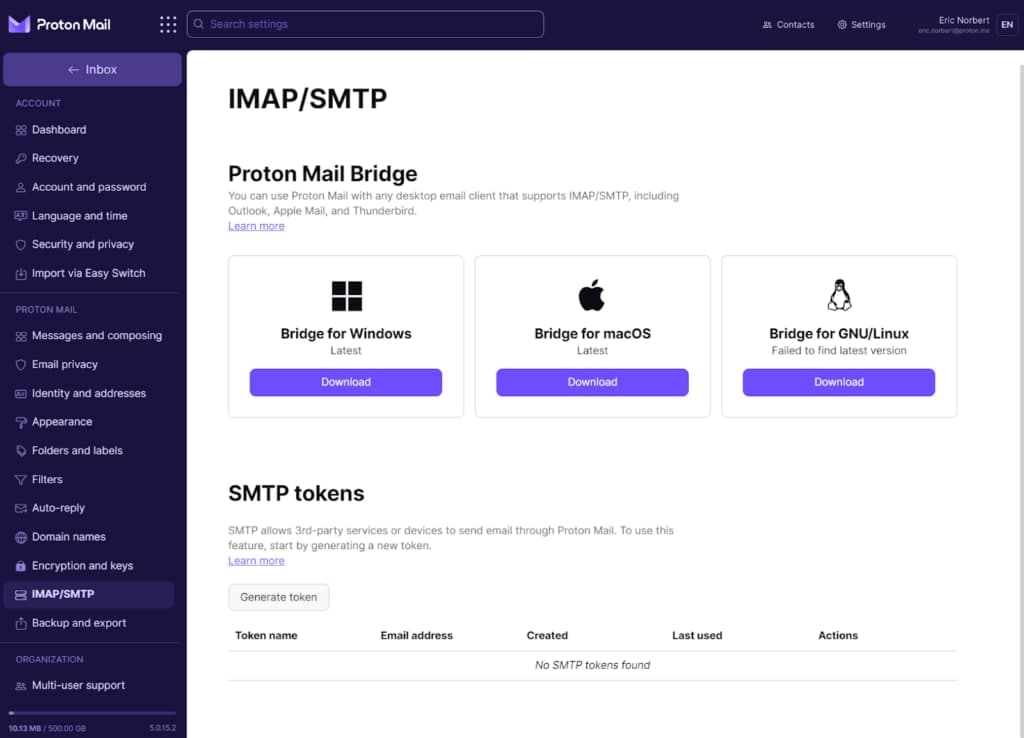
2. Click "Generate token"
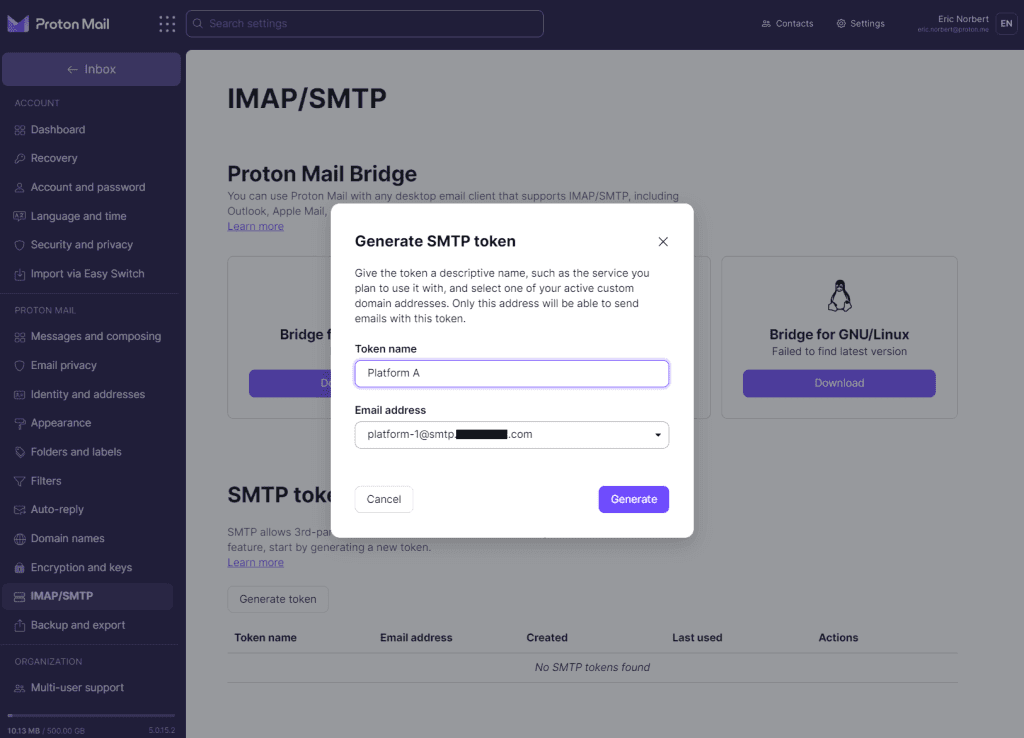
3. Enter the token details
Fill in the following fields:
- Token name: Choose a descriptive name so you remember where it is used (e.g. "Supabase"). Generate a separate token per application for independent access control.
- Email address: Select one of your active custom domain addresses. This will be the SMTP username. Generate a different token for each address if needed.
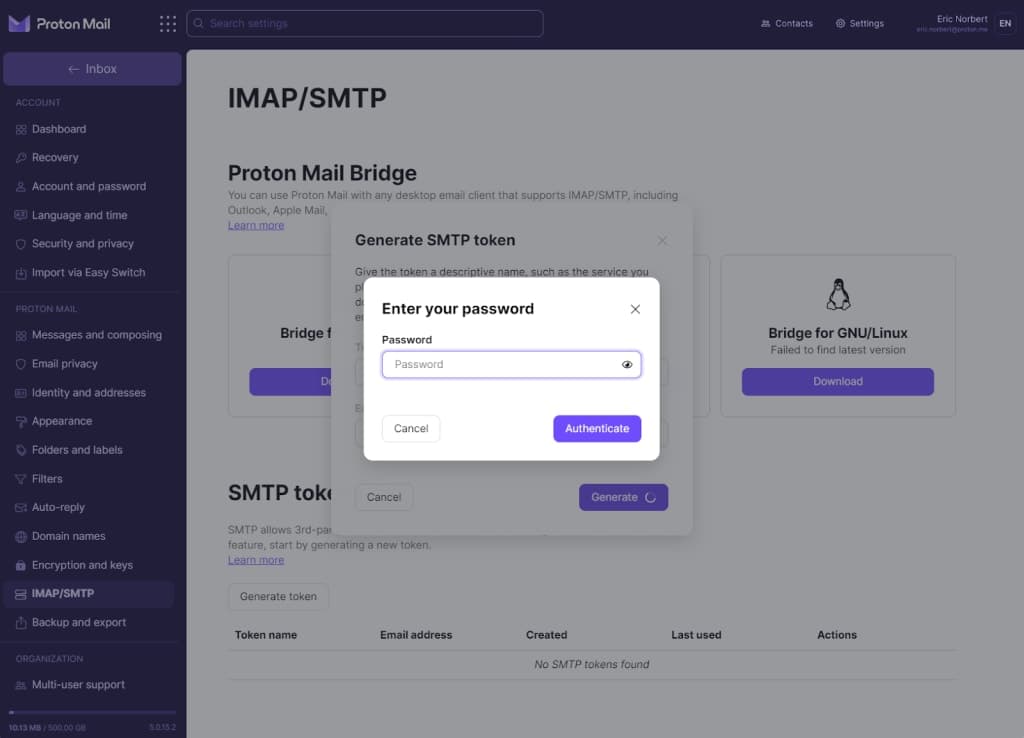
4. Click "Generate" and confirm with your password
5. Copy your SMTP token
Your SMTP username and token (password) will be shown. Copy them now — the token cannot be viewed again after closing this popup for security reasons. Your regular Proton login password will not work for SMTP.
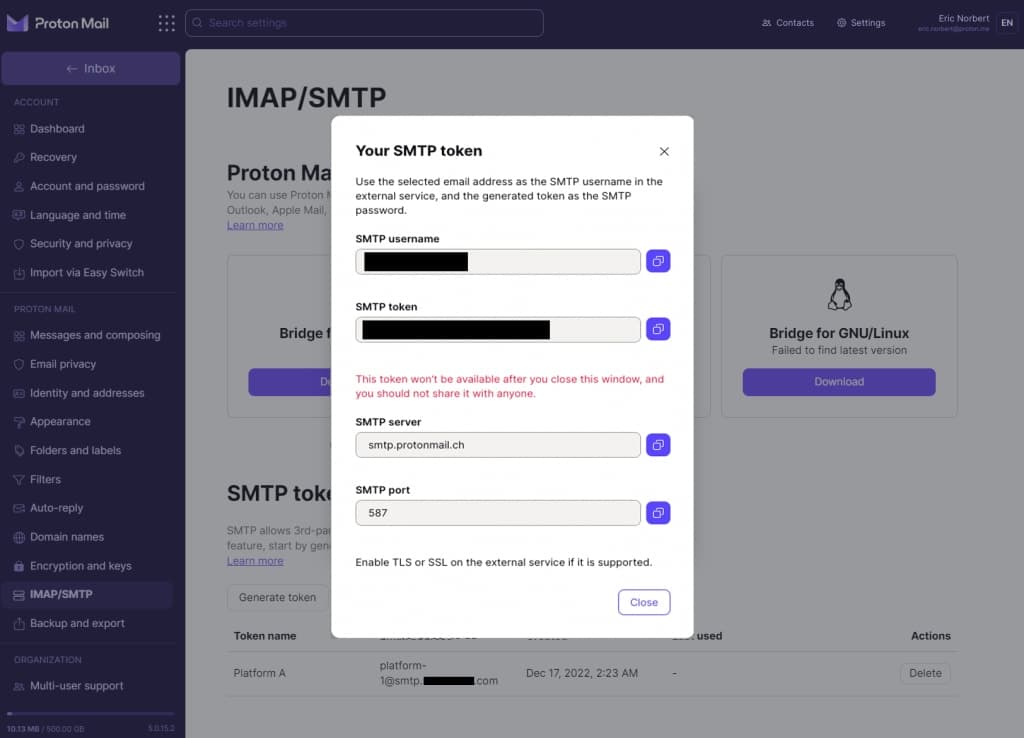
6. Close the popup
The token now appears in your settings with its name, associated email address, creation time, and last used date.
Step 3: Open Supabase SMTP Settings
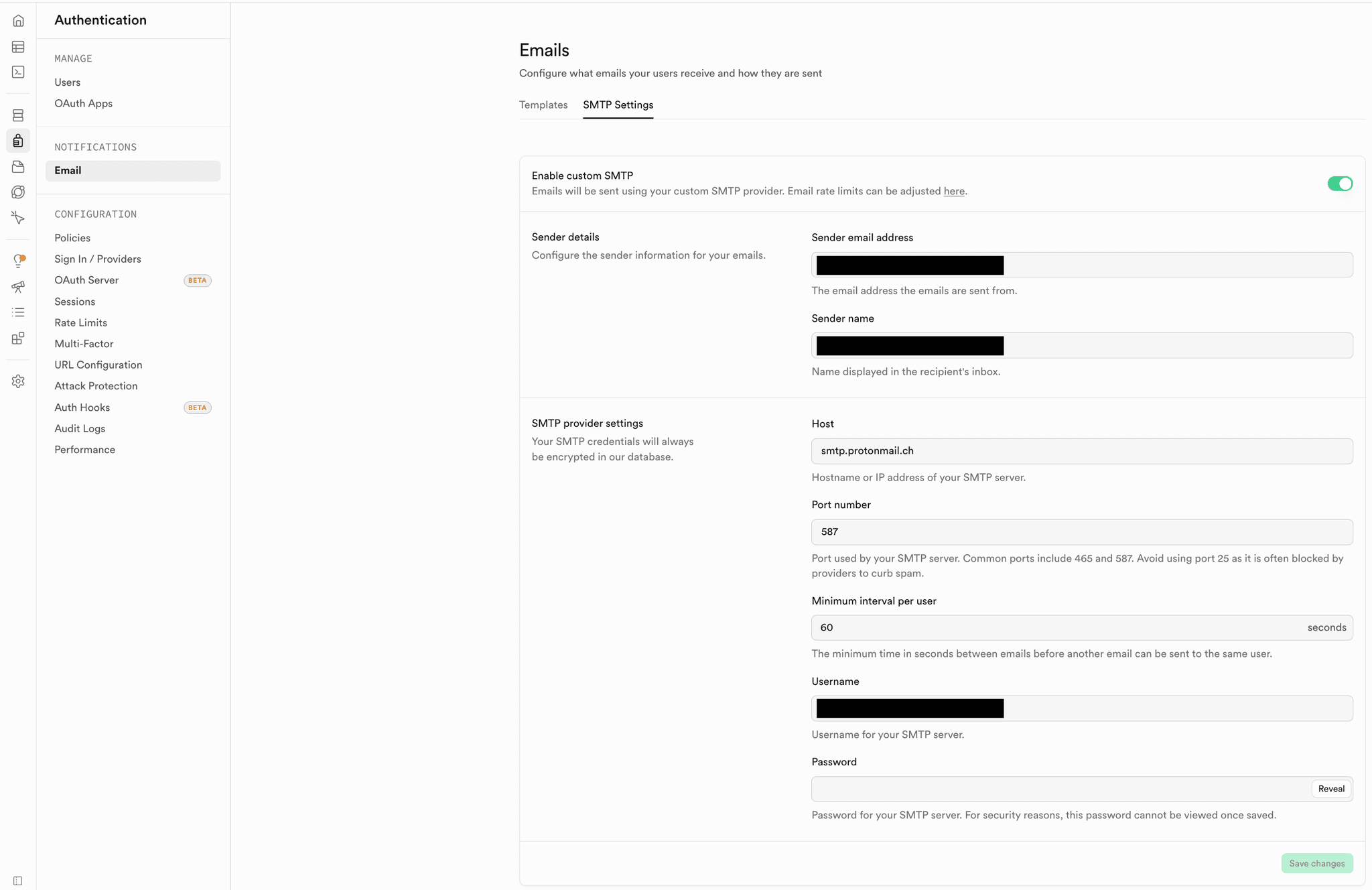
Navigate to your Supabase project and enable custom SMTP:
- Open your Supabase project dashboard
- Go to Authentication → Email → SMTP Settings
- Toggle on Enable Custom SMTP
- Add your Proton SMTP credentials
Conclusion
As you can see, connecting Proton Mail to Supabase only takes a few minutes. With just an SMTP token and a few settings in the Supabase dashboard, you get a production-ready email setup that is secure, privacy-focused, and reliable.
Need Help Setting Up Your Supabase Project?
Our Swiss Supabase experts can help you configure production-ready email delivery, authentication flows, and everything else your Supabase project needs to go live with confidence.
Get Expert Consultation